Mastering Digital Watercolor with the Procreate Watercolour Pencil Brush Kit
Digital art offers incredible freedom, but replicating the organic unpredictability of traditional media remains a significant challenge for many creators. If you have ever struggled to make your digital sketches feel warm and textured, you are not alone. The Procreate Watercolour Pencil Brush Kit was designed specifically to bridge this gap, offering a streamlined entry point into digital watercolor techniques. Rather than overwhelming new users with dozens of redundant tools, this collection focuses on the essential brushes required to learn the medium effectively. It is an ideal solution for beginners who want to create authentic-looking watercolor pencil art without the steep learning curve associated with complex digital setups.
Why Simplicity Matters in Digital Watercolor
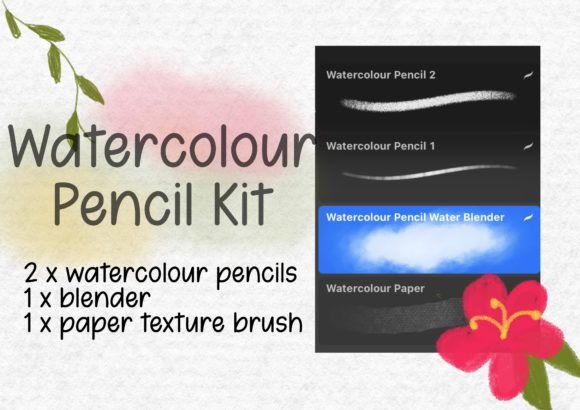
One of the most common mistakes beginners make when starting with digital painting is assuming that more brushes equal better results. In reality, having twenty different watercolor variants often leads to "choice paralysis," where the artist spends more time testing tools than actually creating. This kit corrects that misconception by providing a curated selection: two distinct watercolor pencils, one wet pencil, one textured pencil, a water blender, and a watercolor paper texture brush. This limited palette forces you to master the interaction between these specific tools, which is far more valuable than superficially trying every option available in a massive bundle.
By narrowing your focus, you develop a deeper understanding of how digital pigment behaves. You learn how the wet pencil reacts differently to the water blender compared to the standard watercolor pencils. This foundational knowledge is crucial for anyone looking to transition from rigid digital lines to fluid, expressive artwork. Whether you are a hobbyist looking to relax or a professional illustrator seeking a softer aesthetic, this approach saves time and reduces frustration.
Avoiding Common Technical Pitfalls
Before you begin drawing, it is vital to address the technical side of using custom brushes. A frequent oversight involves the installation process. Many users download the file and attempt to open it directly without unzipping the folder first. This simple error can prevent the brushes from appearing in your library, leading to unnecessary confusion. To ensure a smooth setup, follow these steps carefully:
- Download the file directly to your iPad.
- Locate the downloaded folder in your Files app and unzip it.
- Tap on the individual brush files to automatically import them into Procreate.
If you encounter difficulties, remember that numerous tutorials are available online to guide you through the import process. Taking five minutes to understand this workflow prevents hours of troubleshooting later. Additionally, ensure your Procreate app is updated to the latest version. Older versions may not support newer brush engines, resulting in unexpected behavior or missing features. Checking your software compatibility is a small step that significantly impacts usability and satisfaction.
Misunderstanding Texture and Layering
Another area where artists often stumble is the application of texture. The included watercolor paper texture brush is not just a background element; it is an integral part of the painting process. A common mistake is applying the texture on a separate layer at the very end of the project. While this can work, it often makes the artwork look flat and disconnected. Instead, try integrating the texture early in your workflow. Paint directly on a textured layer or use blending modes to allow the paper grain to interact with your pigment strokes. This technique mimics the way real watercolor sinks into paper fibers, adding depth and realism to your piece.
Furthermore, do not overlook the power of the textured pencil. Many users stick solely to the smooth watercolor pencils, missing out on the granular effects that add character to shadows and details. By alternating between the smooth and textured pencils, you create visual interest and avoid the sterile, uniform look that plagues many digital paintings. Experiment with pressure sensitivity to see how lightly grazing the screen differs from pressing down hard. These subtle variations are key to achieving a natural, hand-drawn feel.
The Importance of the Water Blender
The water blender brush is perhaps the most misunderstood tool in the kit. Beginners often treat it like a standard smudge tool, using it aggressively to blur edges. However, effective watercolor blending requires a lighter touch. Think of the blender as a way to move existing pigment around, not just erase it. A better approach is to lay down your color with the watercolor pencils first, then gently drag the blender through the wet areas to create soft gradients and blooms. This method preserves the integrity of the pigment while allowing for fluid transitions.
Over-blending is a frequent error that results in muddy colors. To avoid this, limit your use of the blender to specific areas where you want softness, such as skies or skin tones. Leave other areas, like sharp outlines or detailed textures, untouched. This contrast between sharp pencil lines and soft washed areas is what gives watercolor art its distinctive charm. By being intentional with your blending, you maintain clarity and vibrancy in your composition.
Choosing the Right Workflow for Your Needs
When evaluating whether this kit is right for you, consider your current skill level and goals. If you are already an advanced digital painter with a customized library of hundreds of brushes, this set might feel too basic. However, for those new to digital watercolor or those looking to simplify their workflow, it is an excellent resource. It removes the guesswork from selecting tools, allowing you to focus on technique and creativity.
Entrepreneurs and marketers can also benefit from this kit. Creating unique, hand-drawn assets for social media or branding can set your content apart from generic stock images. The ease of use means you can produce high-quality visuals quickly, even without extensive artistic training. Educators and bloggers will find these brushes useful for creating engaging headers, illustrations, and instructional materials that feel personal and approachable.
Final Thoughts on Getting Started
Starting with the Procreate Watercolour Pencil Brush Kit is about embracing simplicity and mastering the fundamentals. By avoiding the trap of excessive tool choices and focusing on the core interactions between pencil, water, and texture, you can achieve professional-looking results much faster. Remember to install your brushes correctly, integrate texture thoughtfully, and use the water blender with precision. These practical adjustments will enhance your efficiency and improve the overall quality of your digital art. Happy drawing, and enjoy the process of discovering how digital tools can replicate the beauty of traditional watercolor.