Mastering the Glow: A Practical Guide to Using Neon Light Brushes in Procreate
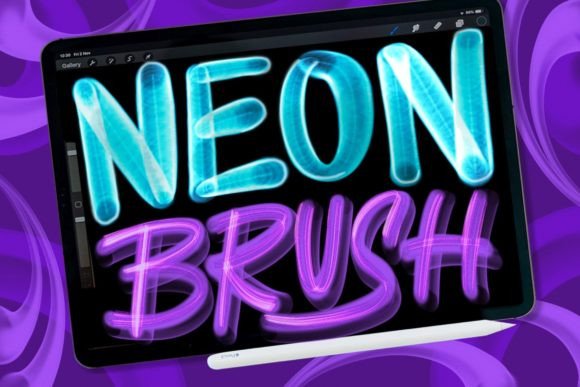
We have been immersed in the world of graffiti for a long time, witnessing its evolution from subway tunnels to digital canvases. Recently, we noticed a significant surge in demand for specific digital materials tailored for artists who wish to translate that raw, urban energy into their iPad workflows. As creators who focus almost exclusively on analog artwork, we understand the tactile nuances of spray paint and markers. We spent countless hours dedicated to creating handmade resources in an analog style, specifically designed to function seamlessly within Procreate using the iPad Pro and Apple Pencil. Through rigorous testing, we studied what works and what fails, leading to the development of our extensive brush sets. These sets, complete with realistic drips, splashes, and graffiti tool templates, offer a perfect possibility for creation. However, simply downloading a Neon Light Brush Procreate pack is not enough to guarantee stunning results. Understanding how to wield these tools effectively is where many artists stumble.
The Misconception of Instant Realism
One of the most common mistakes beginners make when adopting digital graffiti tools is assuming that the brush does all the heavy lifting. There is a prevailing misunderstanding that a high-quality neon brush will automatically produce professional-grade glowing effects with a single stroke. This expectation often leads to frustration when the initial results look flat or artificial. The reality is that a Neon Light Brush Procreate asset is merely a texture generator; it mimics the physical behavior of paint or light, but it does not replicate the lighting physics of a real neon sign or the atmospheric glow of street art.
When artists rely solely on the brush opacity and size without adjusting layer properties, the outcome lacks depth. The "neon" effect appears painted on rather than emitted. This oversight affects the overall quality and presentation of the artwork, making it look like a static illustration rather than a vibrant, luminous piece. To avoid this, you must treat the brush as a base layer. The true magic happens in the post-processing stages within Procreate, such as utilizing Gaussian Blur, Adjustment Layers, and blending modes like Add or Screen. By understanding that the brush provides the form while the software settings provide the light, you can achieve a much more convincing and dynamic result.
Overlooking Canvas Resolution and DPI
Another critical detail often overlooked is the importance of canvas resolution. Many hobbyists and small business owners create their designs on default canvas sizes, which are often insufficient for high-quality prints or large-scale digital displays. When using detailed brushes that simulate drips and splashes, low resolution can cause pixelation and loss of fine detail. This is particularly detrimental when working with neon effects, where the crispness of the light core against the soft glow is essential for visual impact.
If you plan to use your artwork for marketing materials, merchandise, or large prints, starting with a low-DPI canvas can ruin the final product. The advice here is simple but vital: always set your canvas to at least 300 DPI if print is a possibility, and ensure the dimensions are large enough to accommodate intricate details. Before you begin sketching with your Neon Light Brush Procreate tools, check your document settings. This proactive step saves hours of rework and ensures that the subtle textures of your handmade resources remain sharp and defined.
Neglecting the Analog Foundation
As someone who has spent years working with physical graffiti, I cannot stress enough the importance of understanding the source material. Digital brushes are modeled after real-world behaviors. If you do not understand how actual neon tubes bend, how light diffuses through glass, or how spray paint reacts to different surfaces, your digital work may lack authenticity. A common error is creating neon shapes that defy physical logic, such as impossible angles or inconsistent thickness, which breaks the viewer's immersion.
To improve your efficiency and quality, take time to study real-life references. Observe how light interacts with surroundings. When using our brush sets, which include templates of graffiti tools, try to mimic the natural hand movements you would use with a physical marker or spray can. This approach adds a human touch that purely digital, vector-style art often lacks. By bridging the gap between analog knowledge and digital execution, you create work that resonates more deeply with audiences who appreciate the craft behind the art.
Choosing the Right Brush for the Job
Not all neon brushes are created equal, and using the wrong type for a specific effect can hinder your workflow. Our extensive research into what works and what does not has led us to categorize brushes based on their intended use. Some are designed for sharp, clean lines ideal for typography, while others are optimized for soft, atmospheric glows suitable for backgrounds. A frequent mistake is using a hard-edged brush for a soft glow effect, resulting in a jagged and unpolished appearance.
Before committing to a purchase or download, evaluate the brush set's versatility. Look for packs that offer variety, including options for drips, splashes, and core highlights. Test the brushes on different layers to see how they interact with blending modes. A good Neon Light Brush Procreate set should allow you to build up intensity gradually, giving you control over the brightness and saturation. Avoid sets that feel one-dimensional or lack customization options. The ability to tweak streamlines, opacity, and jitter is crucial for adapting the tool to your unique style.
Workflow Efficiency and Layer Management
Digital art can quickly become chaotic if layer management is ignored. When working with complex neon effects, it is tempting to keep everything on a single layer for simplicity. However, this practice severely limits your ability to edit and refine your work. If you make a mistake or want to adjust the color of a specific element, you may find yourself repainting entire sections. This inefficiency not only wastes time but also diminishes the creative process.
Adopt a structured layering strategy from the start. Separate your base shapes, glow effects, highlights, and background elements onto different layers. Use layer groups to organize related components. This approach allows you to apply adjustments to specific parts of your artwork without affecting the whole. For instance, you can increase the brightness of the neon core without altering the surrounding splash effects. By maintaining a clean and organized workspace, you enhance your productivity and make it easier to experiment with different looks and feels.
Making an Informed Decision
When evaluating digital resources, consider the creator's background and expertise. Sets developed by artists with a deep understanding of both analog and digital mediums tend to offer more authentic and usable tools. Look for reviews and examples that demonstrate the brushes in action, rather than relying solely on promotional images. Check if the provider offers support or tutorials, as these can significantly accelerate your learning curve.
Ultimately, the goal is to find tools that empower your creativity rather than restrict it. A well-designed Neon Light Brush Procreate pack should feel like an extension of your hand, allowing you to express your vision with precision and flair. By avoiding common pitfalls, respecting the technical requirements of digital art, and applying practical workflow strategies, you can unlock the full potential of these resources. Whether you are a freelancer looking to expand your service offerings, a marketer creating eye-catching social media content, or a hobbyist exploring new artistic avenues, mastering these tools will elevate your digital graffiti game.